
Using the Data.World – Get Dataset Data Source Connector in Power BI
Using the GitHub Data Source Connector in Power BI: A Comprehensive Guide
Power BI is a powerful data visualization tool that enables businesses and individuals to turn data into actionable insights. One of its greatest strengths is its ability to connect to various data sources, including GitHub, a widely used platform for code hosting and version control. In this guide, we will explore how to use the GitHub Data Source Connector in Power BI, from setting up the connector to visualizing your GitHub data in dynamic dashboards.
Why Connect GitHub to Power BI?
GitHub repositories often contain valuable information such as commit histories, issue tracking, pull requests, and project activity. By connecting GitHub to Power BI, you can:
- Monitor repository activity over time.
- Track pull requests and issues to manage your workflow effectively.
- Visualize contributions and identify trends in your projects.
- Generate reports to share insights with your team or stakeholders.
Prerequisites for Using the GitHub Connector
Before you begin, make sure you have the following:
- A Power BI Desktop or Power BI Service account.
- A GitHub account with access to the repositories you want to analyze.
- Basic understanding of Power BI and GitHub functionalities.
Step-by-Step Guide to Using the GitHub Connector
Step 1: Open Power BI Desktop
Launch Power BI Desktop on your computer. If you haven’t installed it yet, download it from the official Power BI website.
Step 2: Connect to GitHub
To connect to GitHub:
- Click on Get Data in the Home ribbon.
- Select Online Services from the options.
- Choose GitHub from the list of available connectors.
- Click Connect.
Step 3: Authenticate with GitHub
After selecting the GitHub connector, you will be prompted to authenticate your GitHub account:
- Enter your GitHub credentials.
- Authorize Power BI to access your GitHub data. Ensure you have the necessary permissions to read repository data.
Step 4: Select Data to Import
Once authenticated, you’ll be able to see a list of your repositories. Select the repository or repositories you want to import data from. You can choose different data types such as:
- Commits: Provides a history of changes made to the repository.
- Issues: Displays data related to issues created, updated, and closed.
- Pull Requests: Shows details about pull requests, including their status and associated discussions.
After selecting the desired data types, click Load to import the data into Power BI.
Step 5: Transform and Clean Data (Optional)
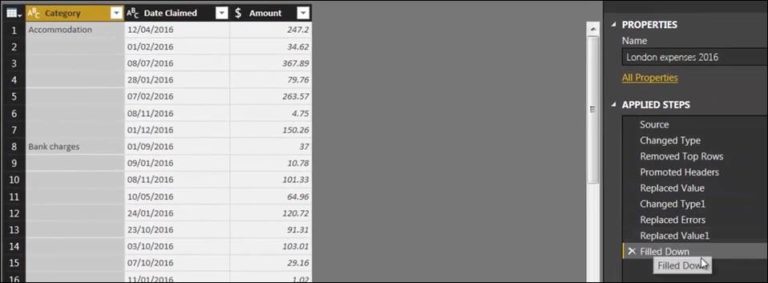
Power BI allows you to transform and clean your data using the Power Query Editor. This step is optional but recommended if you need to:
- Remove unnecessary columns.
- Filter data based on specific criteria.
- Rename columns or change data types.
To access the Power Query Editor, click on Transform Data after loading your GitHub data.
Step 6: Create Visualizations
With your data loaded into Power BI, you can start creating visualizations to analyze your GitHub activity. Some popular visualizations include:
- Line Charts to show commit trends over time.
- Bar Charts to display the number of issues created, resolved, or still open.
- Pie Charts to visualize pull request statuses.
- Tables to list detailed data like top contributors or active issues.
Drag and drop fields onto the canvas to create your desired visualizations. Use the Visualizations pane to customize your charts and graphs.
Step 7: Publish Your Report
Once your report is ready, you can publish it to the Power BI Service for sharing and collaboration:
- Click on File in the top menu.
- Select Publish and then Publish to Power BI.
- Choose your workspace and click Publish.
Your report is now accessible online, where you can share it with your team or stakeholders.
Best Practices for Using GitHub Data in Power BI
- Regularly Update Data: Set a schedule to refresh your data to keep reports up-to-date.
- Use Filters: Apply filters to focus on specific timeframes, repositories, or contributors.
- Leverage Power BI Features: Use features like drill-downs, tooltips, and bookmarks to enhance your reports.
- Collaborate and Share: Utilize Power BI’s collaboration features to get feedback and insights from your team.
Conclusion
Integrating GitHub with Power BI provides a powerful way to analyze and visualize your development workflow. By following the steps outlined in this guide, you can effectively connect to GitHub, import data, and create insightful reports and dashboards. Start leveraging the power of your GitHub data today and enhance your project management and decision-making processes with Power BI!
For further reading and more advanced tips, check out the Power BI documentation and GitHub API documentation.